With the introduction of Log Assist in Version 4.0.7 last week and the killing of the Skyline Advisor, the Skyline Health Diagnostic (SHD) has come back into focus. In this article, I would like to show you how it works, what settings can be made and what functions the appliance offers. There will soon be another article showing how to interpret the log analysis.
The VMware Skyline Health Diagnostics is a self-service health and diagnostics platform that can help users detect and troubleshoot issues in their VMware environment. The platform uses log bundles, configuration & health information, and other data to identify potential problems, and suggest relevant VMware Knowledge Base articles or remediation steps which can be helpful in resolving complex issues […]
About VMware Skyline Health Diagnostics
Download Skyline Health Diagnostic Appliance (SHD)
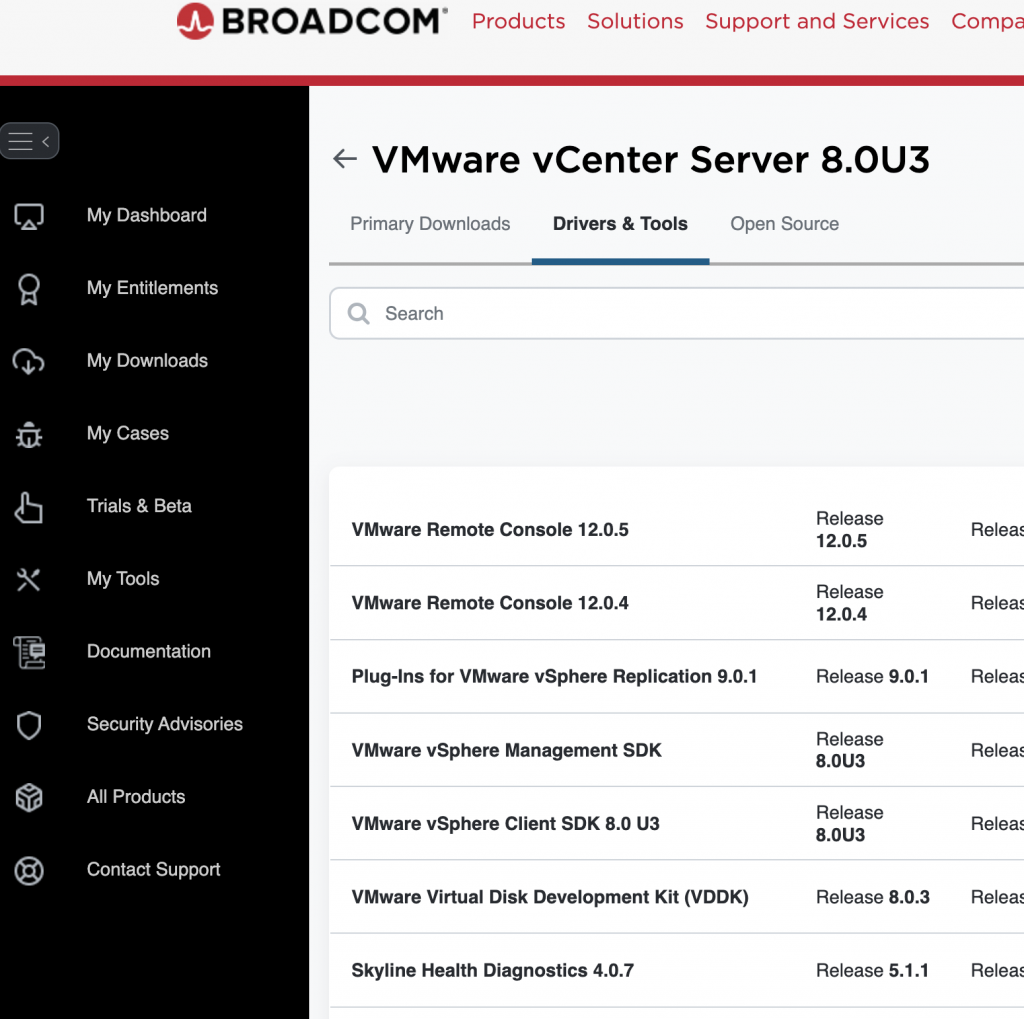
To Download Skyline Health Diagnostic you need to login into support.broadcom.com Portal and select My Downloads > vCenter > vCenter [Version] > Drivers & Tools > Skyline Health Diagnostic (Release Notes). FYI: All Skyline Health Diagnostic documents are migrated to techdocs.broadcom.com.
Install SHD
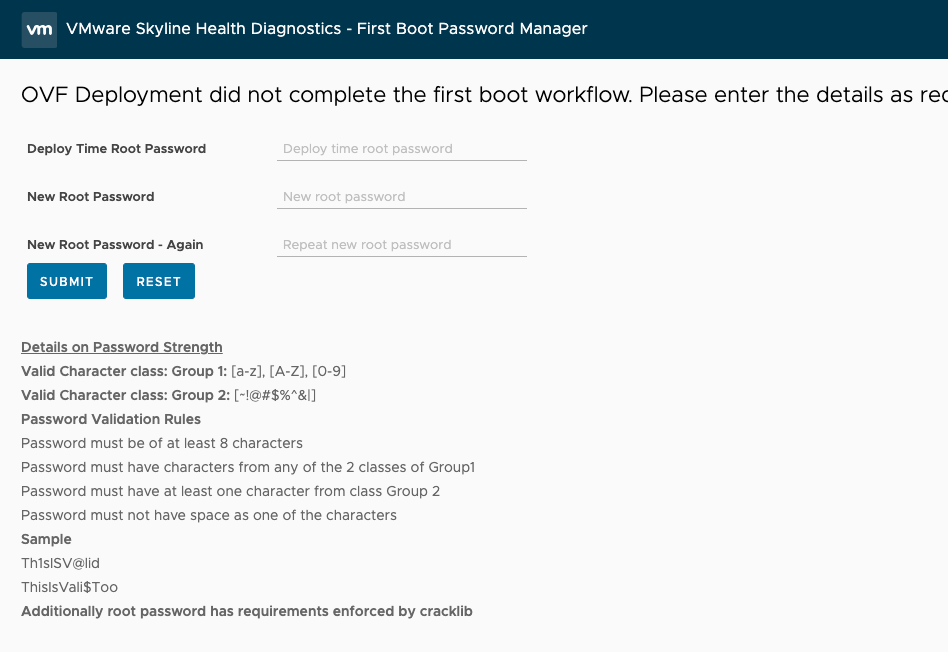
In the deployment process of the appliance you need to setup a Password for the root and the shd-admin and if, as is usually the case, you do not want to use DHCP, then set the network settings. Since you will be prompted to change the root password directly after the installation process when you start the Appliance for the first time, you can set a simple password during installation process.
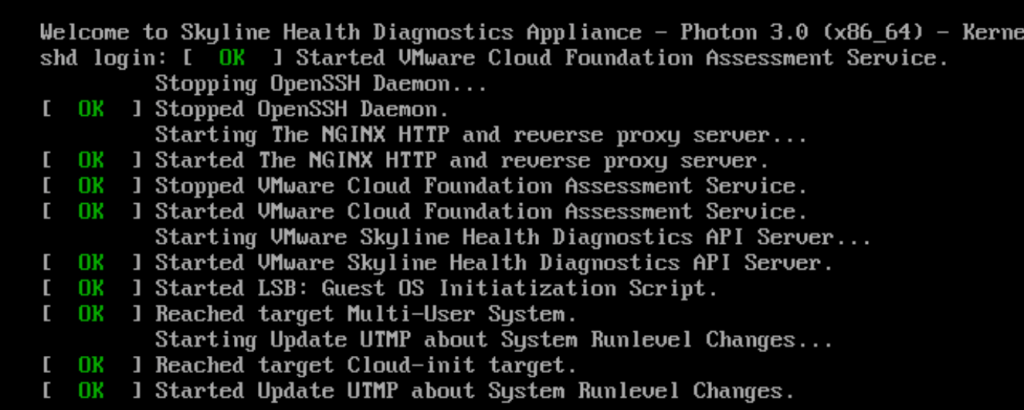
Installation is complited and you can start to setup the Appliance: https:/shd_ip_address_or_fqdn
Setup SHD
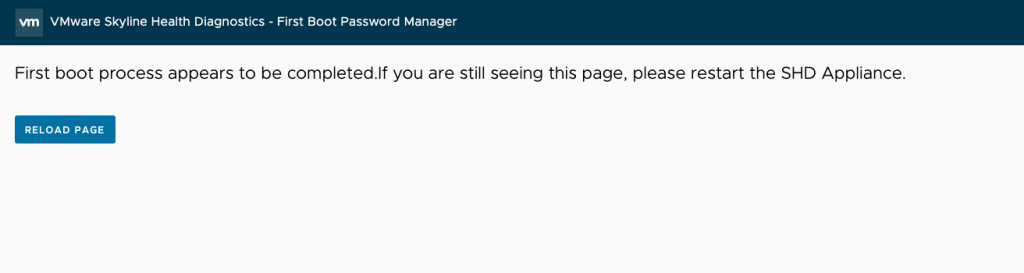
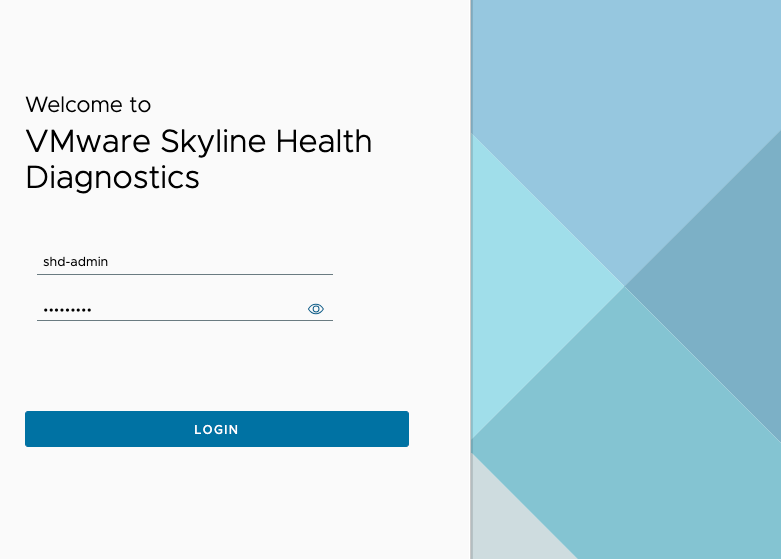
First of all you need as mention to setup a new Password. After that you can login Into Skyline Health Diagnostic and accept the „End user license agreement“ and accept „Customer Experience Improvement Program“.
CEIP Collection Sample Data
{
  "ceip": {
    "@id": "16c3aa593165",
    "@table": "vmwshd_usage_data",
    "@type": "vmwshd_usage_data",
    "bundle_size": 0,
    "extract_time": 0,
    "instance_id": "3bd40b0f-de6f-d06e-b257-a5fca139c8ad",
    "log_dir": [
      {
        "@id": "00008a093b677c21",
        "@table": "vmwshd_logdir_data",
        "@type": "vmwshd_logdir_data",
        "bundle_id": "16c3aa593165",
        "log_hash": "cf6cb866184147ca0395f38989f0704d55549d37d685f06ec18a5efdeeaff584",
        "num_fails": 0,
        "num_hits": 1,
        "num_rules": 156,
        "prd_build": "8294253",
        "prd_name": "VMware ESXi",
        "prd_release": "ESXi 6.5 Update 2 GA",
        "prd_type": "esxi",
        "prd_ver": "6.5.0",
        "rules_failed": "",
        "rules_matched": [
          {
            "@id": "d416514886d000b6",
            "@table": "vmwshd_result_data",
            "@type": "vmwshd_result_data",
            "log_id": "00008a093b677c21",
            "name": "KB67686",
            "space": "PSOD"
          }
        ],
        "status": "Completed Run Plugins",
        "time_finish": "2020-05-04T09:25:33",
        "time_run": 34,
        "time_start": "2020-05-04T09:24:59",
        "valid": 1
      }
    ],
    "nested_count": 0,
    "num_fails": 0,
    "num_hits": 1,
    "num_logs": 1,
    "num_rules": 156,
    "product_id": "8ff97494-3874-6212-a684-422b12504f12",
    "product_name": "VMware Skyline Health Diagnostics",
    "product_version": "4.0.7",
    "status": "Run Plugins - Completed",
    "task_exit": 200,
    "task_finish": "2020-05-04T09:25:34",
    "task_start": "2020-05-04T09:24:58",
    "task_status": "Completed",
    "task_time": 36,
    "task_type": "submitlog",
    "vc_uuid": "346000-000-000-000-0e82d720000"
  }
}
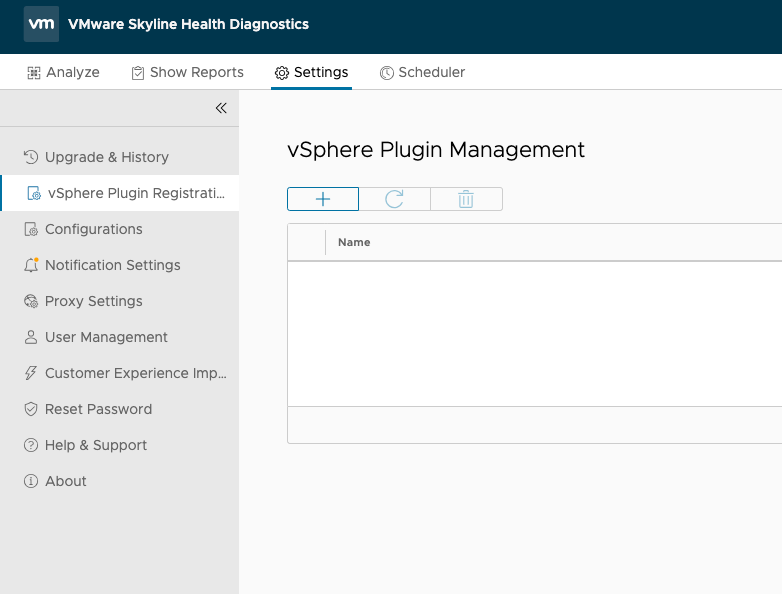
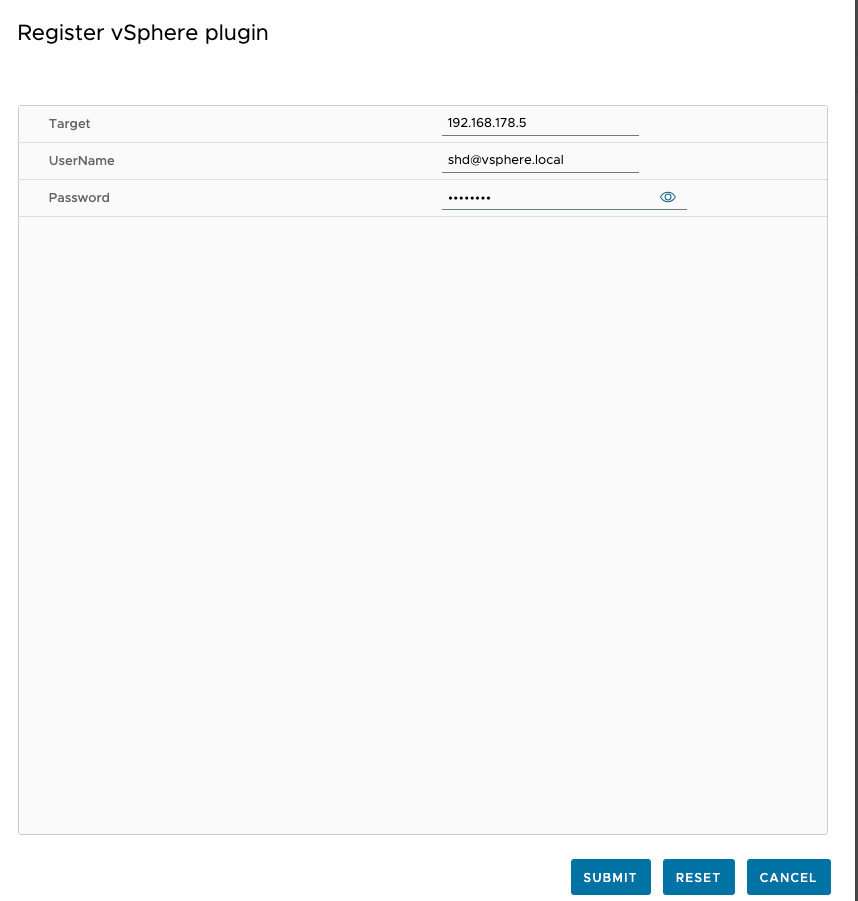
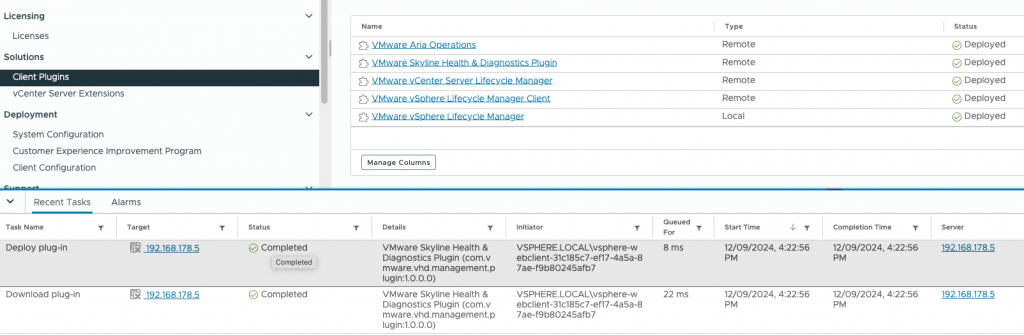
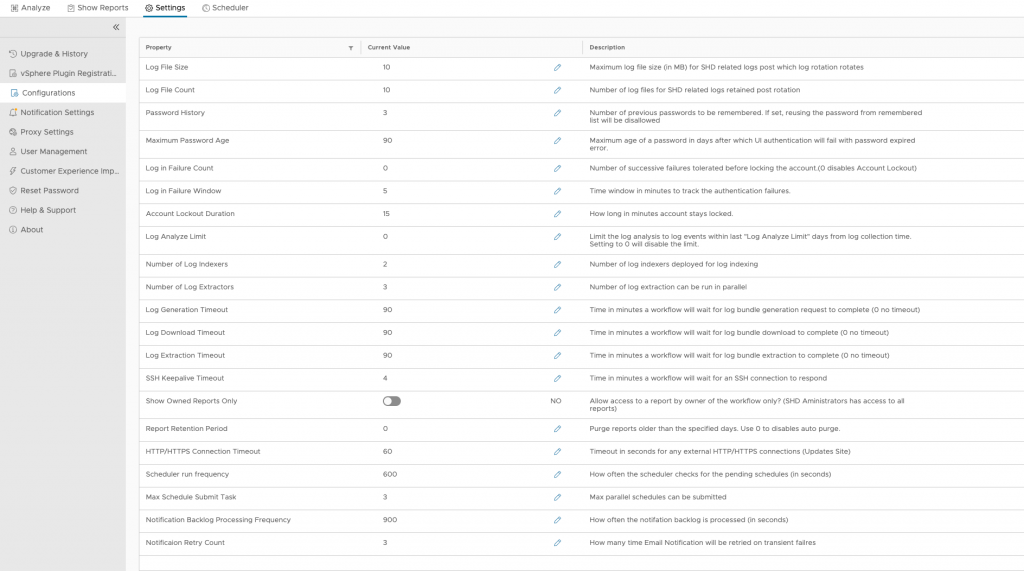
After click on „Settings“ you can start to setup the vCenter Connection via vSphere Plugin Registration, change default Configurations like Passwort History or Maximum Passwort Age and select if necassery a Proxy for the internet connection.
SHD – Log Assist
Important: Use of the Log Upload feature is limited to customers who receive technical support directly from Broadcom. If you receive support through one of Broadcom’s authorized partners, you will need to upload support files manually via the Broadcom Support portal. Please see the VMware to Broadcom Support FAQ for more information.
source: techdocs.broadcom.com
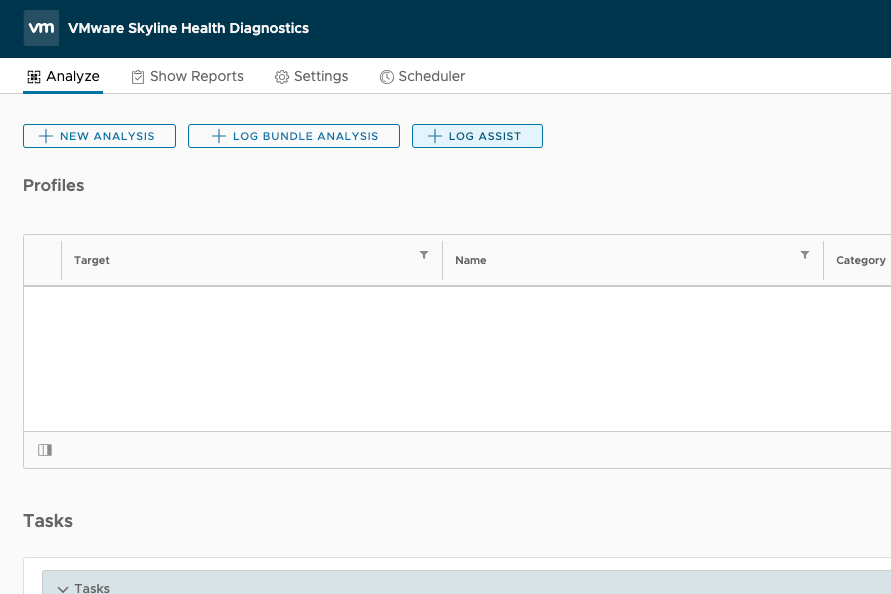
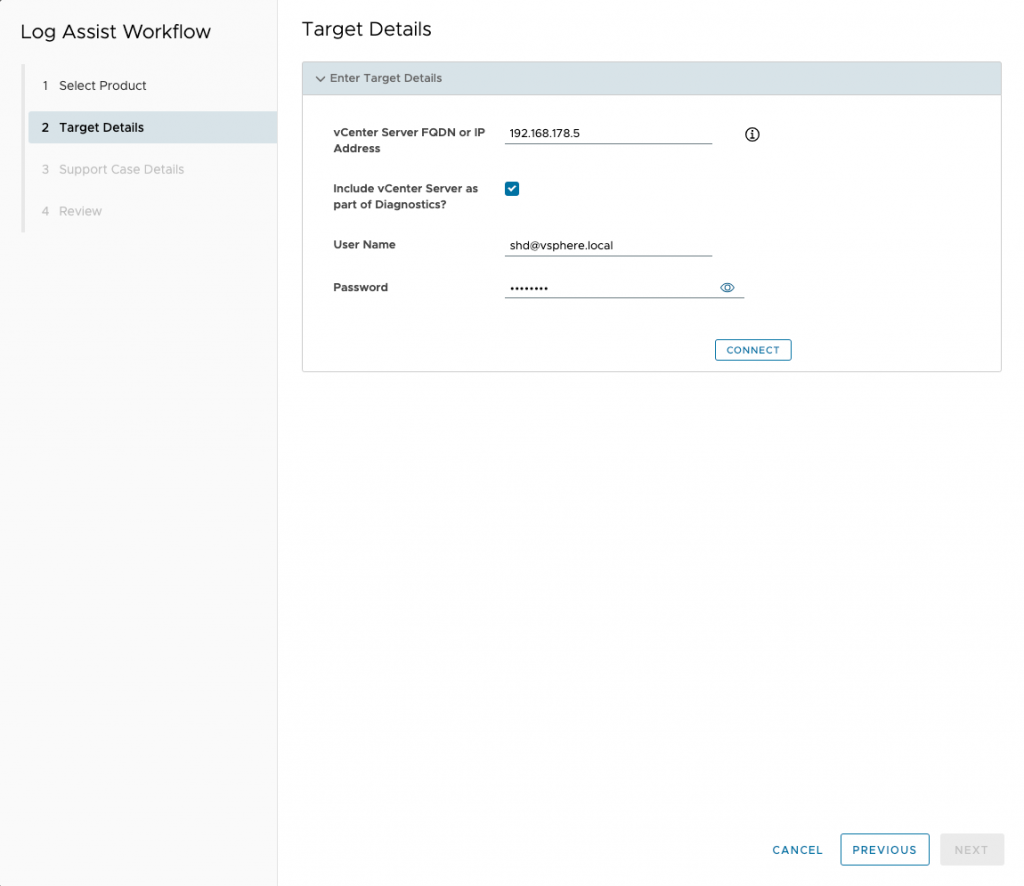
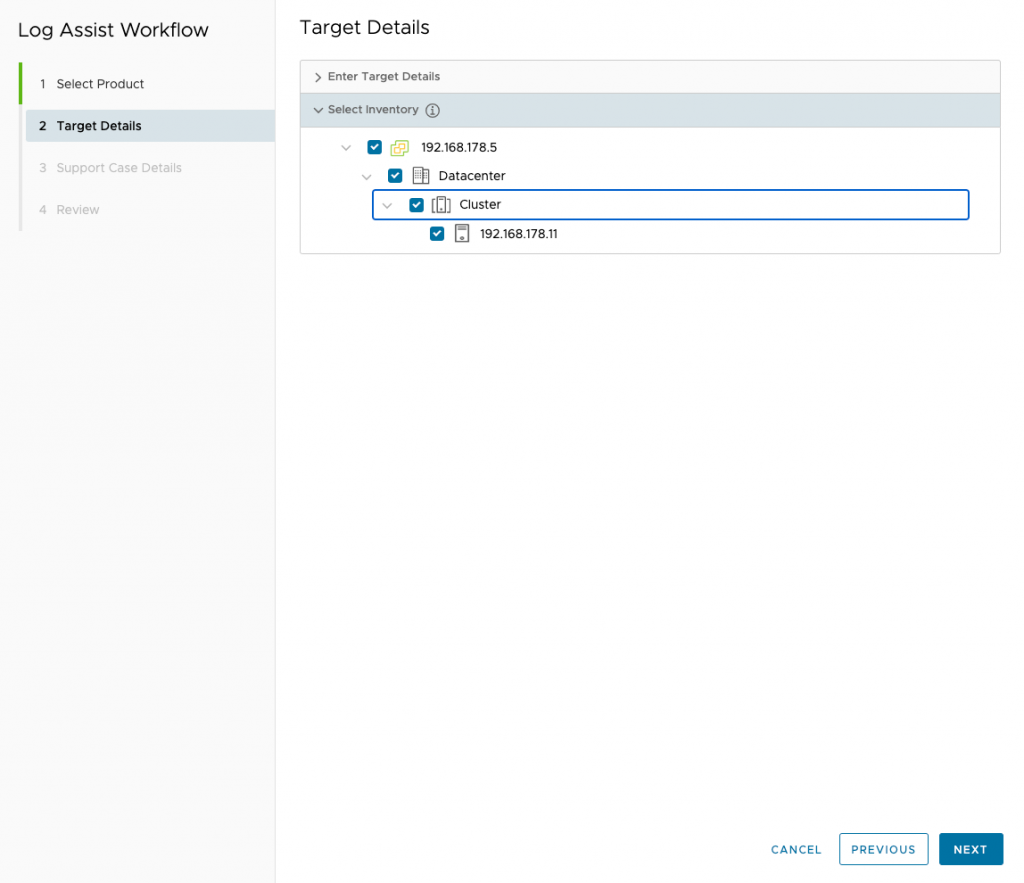
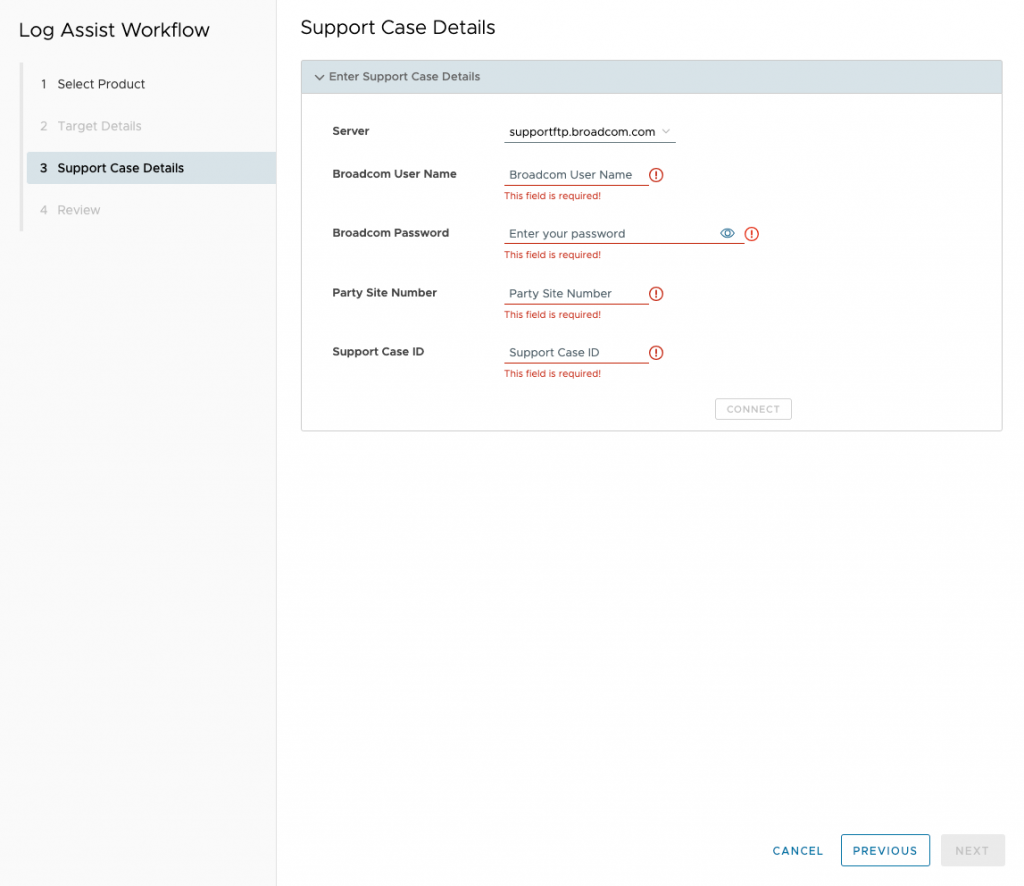
After click „+ LOG ASSIST“ you need to select between „VMware vSphere“ or „SDDC Manager“ and what you like to collect to your SR. After that you need to setup your Credentials for the support.broadcom.com Portal. Unfortunately there is an option at the Moment for me to show more Infos after that point, as I have neither a valid site ID nor a suitable case. I may be able to change this soon due to a customer situation. Then I will expand the point here. Until then, I would like to refer you to the two links:
- https://knowledge.broadcom.com/external/article/382858/log-assist-for-skyline-health-diagnostic.html
- https://techdocs.broadcom.com/us/en/vmware-cis/skyline/health-diagnostics/4-0-7/installation-instructions/user-guide/log-assist/registration-of-skyline-health-diagnostics-plugin-from-vsphere-client.html
SHD – New Analysis
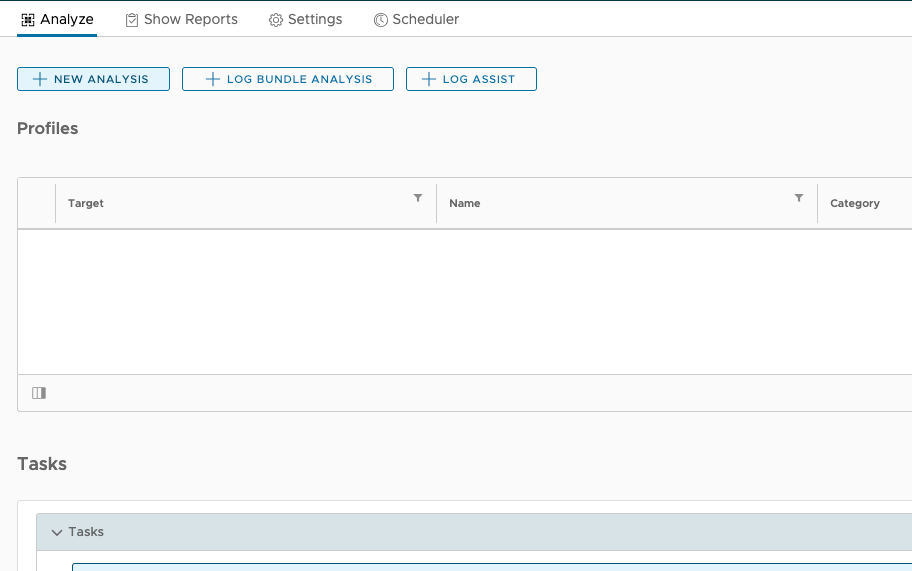
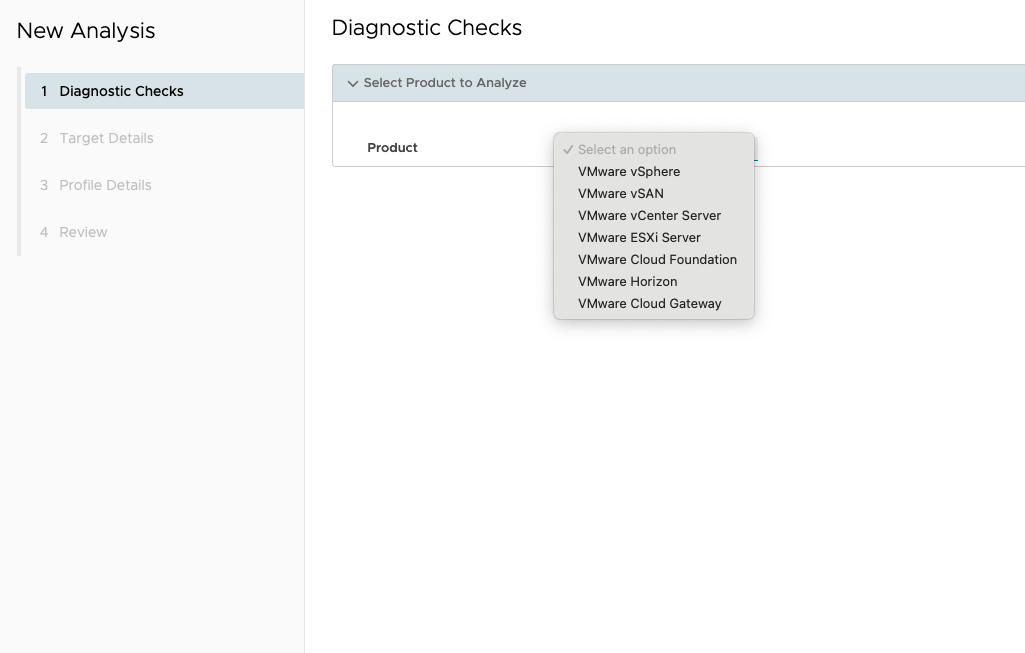
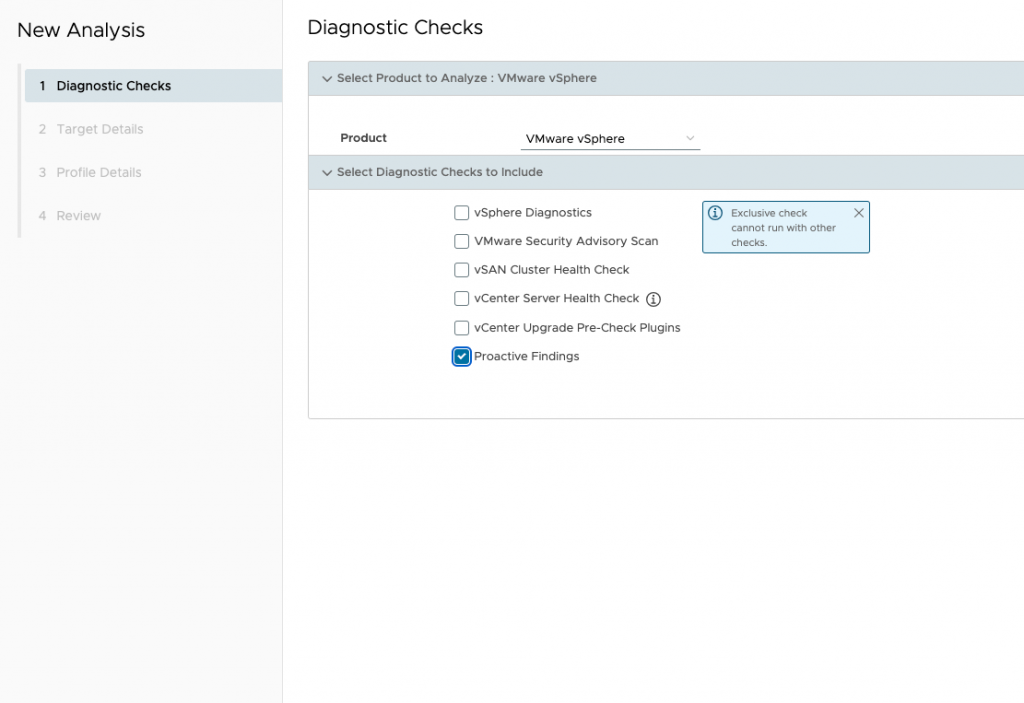
Let’s start with a Analysis via Skyline Health Diagnostic. At first you need to select you Product. It is still changeable after click an „Next“. After select the Product you got an overview of which Checks you want to include. Please note that it is not always possible to select several checks together. For example, the vSphere checks “vCenter Upgrade Pre-Check Plugins” and “Proactive Findings” can only be selected individually. (i) Exclusive check cannot run with other checks.
Available Checks:
VMware vSphere
- vSphere Diagnostics
- VMware Security Advisory Scan
- vSAN Cluster Health Check
- vCenter Server Health Check
- vCenter Upgrade Pre-Check Plugins
- Proactive Findings
VMware vSAN
vSAN Cluster Health Check
vCenter Server
vCenter Server/PSC Appliance Direct Connect Diagnostics
VMware Security Advisory Scan
vCenter Server Health Check
vCenter Server Upgrade Pre-Check
VMware ESXi Server
- ESXi Direct Connect Diagnostics
- VMware Security Advisory Scan
VMware Cloud Foundation
- SDDC Manager Diagnostics
- VMware Security Advisory Scan
- VMware Cloud Foundation Health Check
- VMware Cloud Foundation Upgrade Assessment
- Proactive Findings (SDDC Manager)
VMware Horizon
- Horizon Diagnostic
VMware Cloud Gateway
- Cloud Gateway Diagnostics
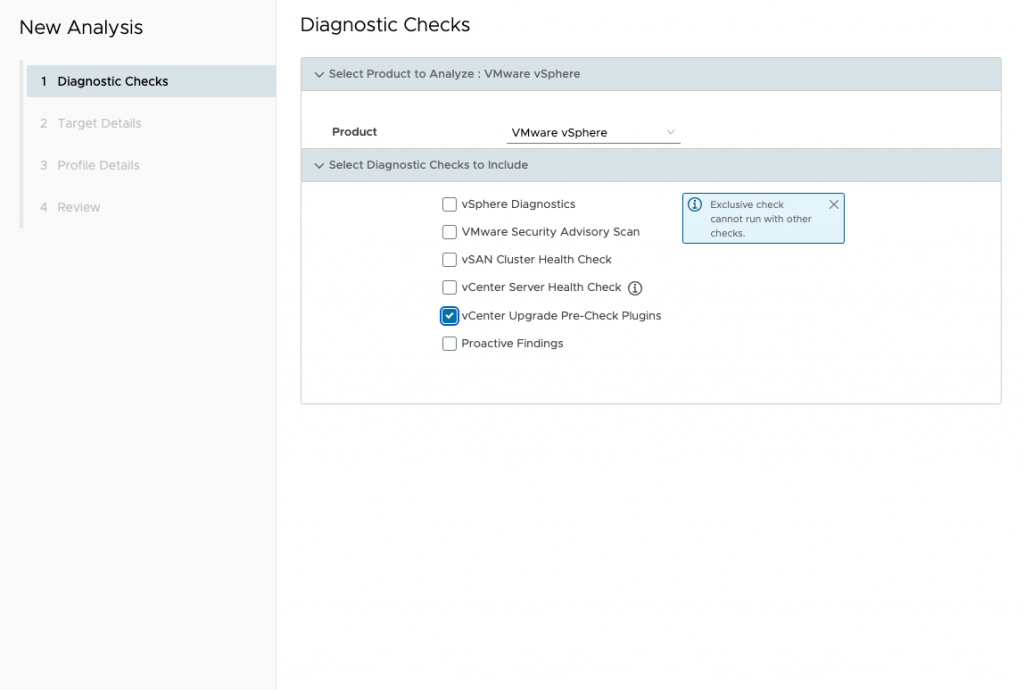
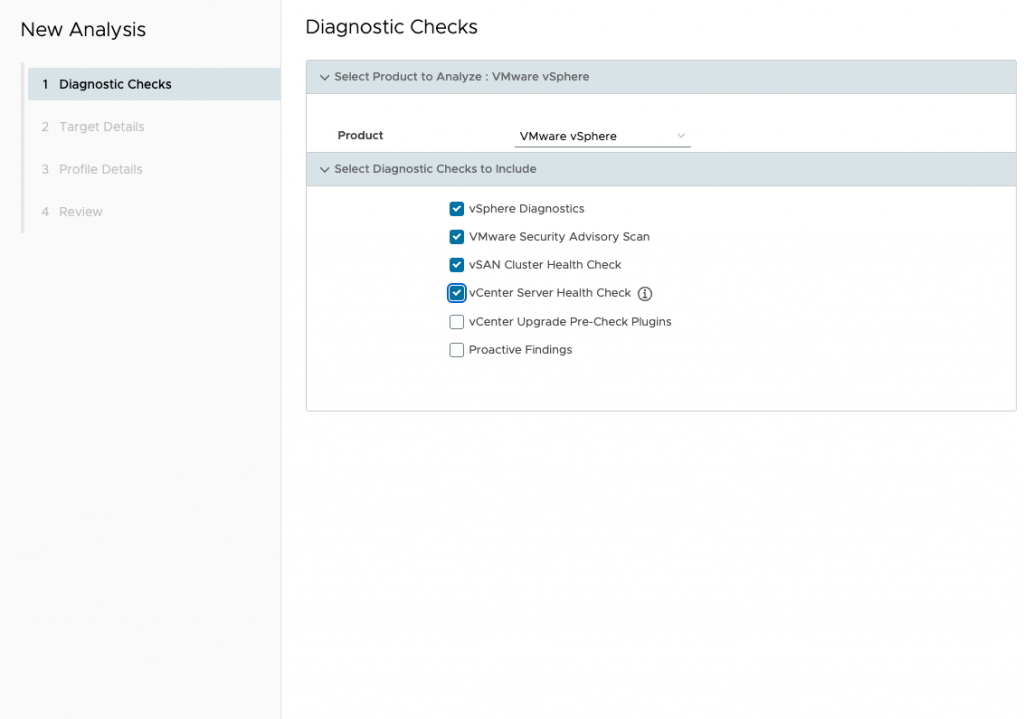
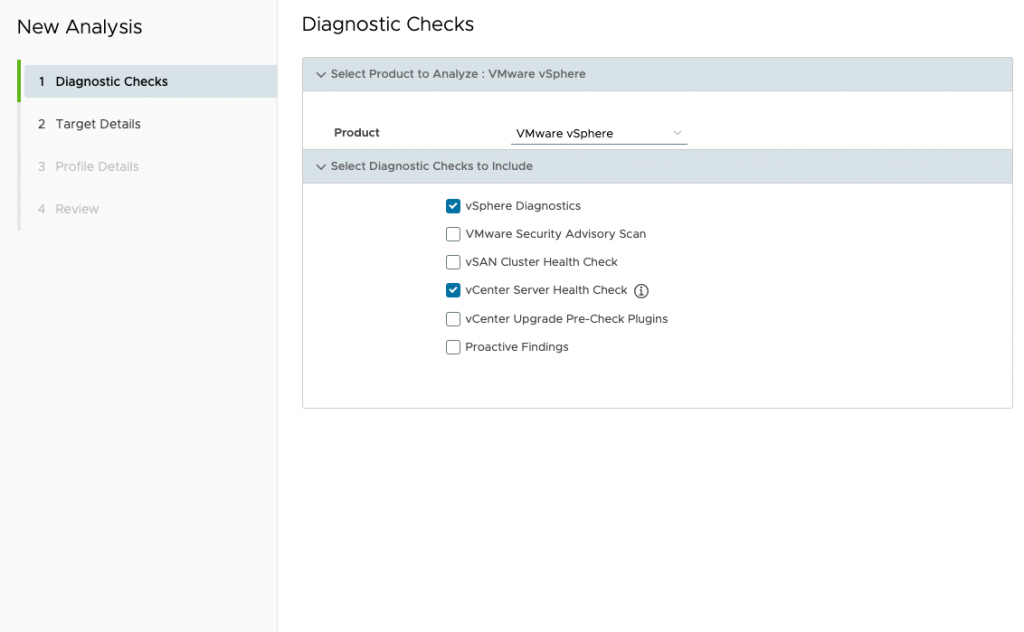
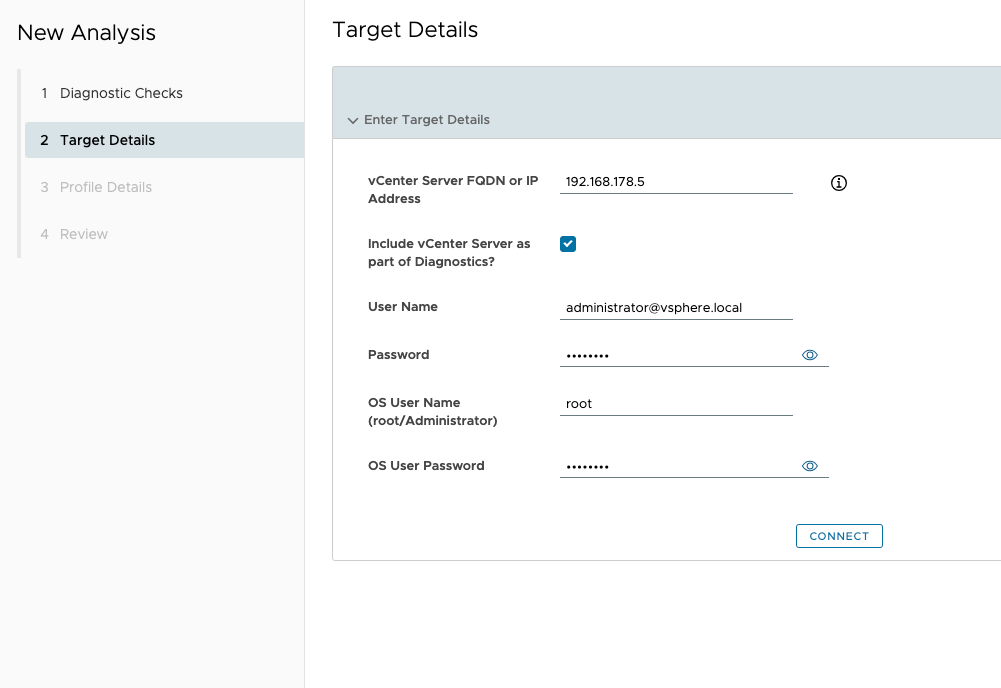
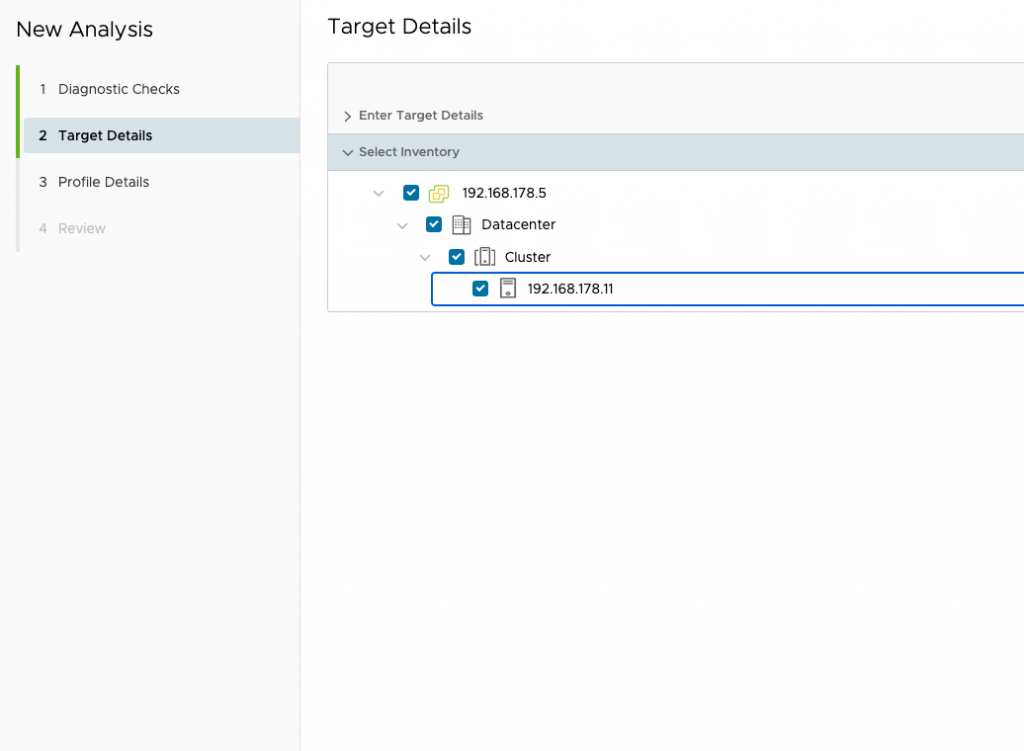
If all relevant Checks included and you click on next you need your credentials for e.g. your vCenter. At least select inventory you like to check and click on next. The log analysis process has now started.
FYI: There will be following an article focused on the interpretation of the analysis.
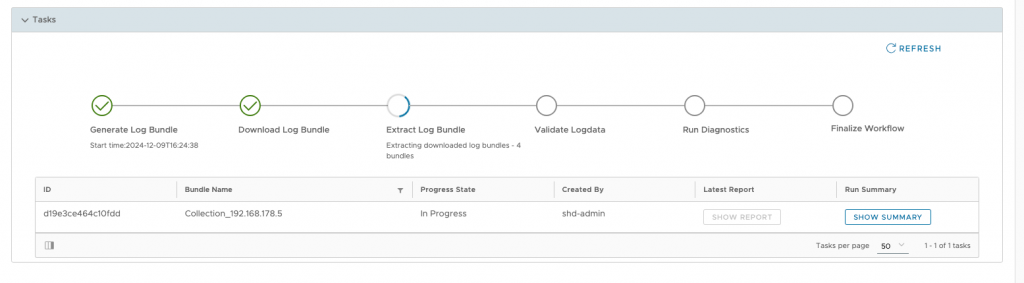
SHD – Log Bundle Analysis
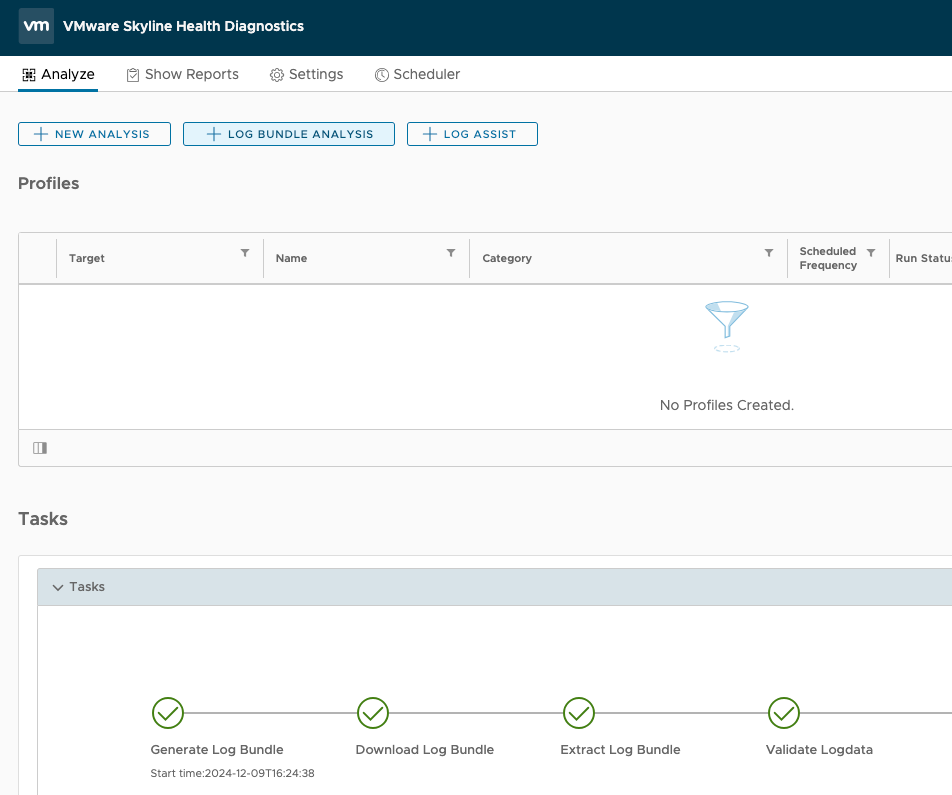
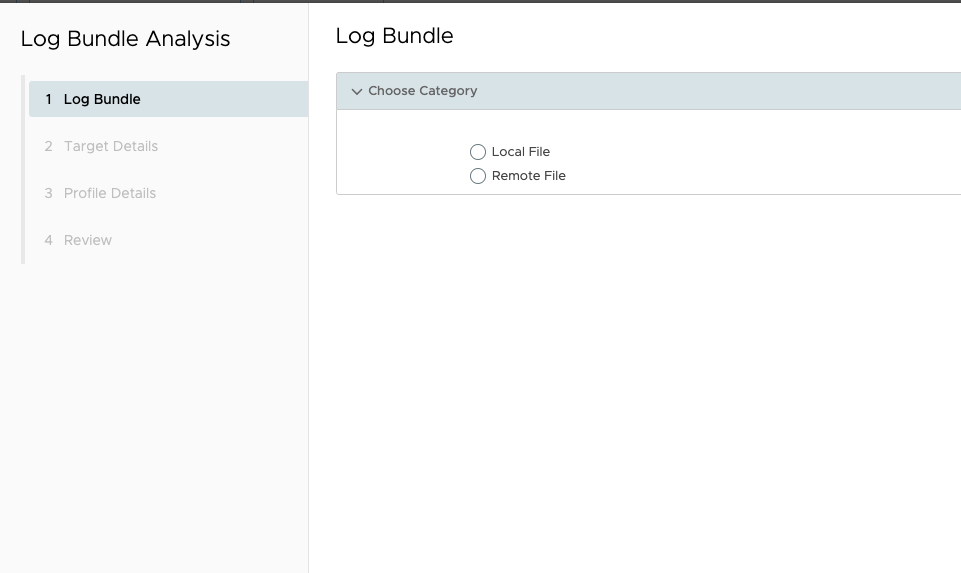
If you are unable to connect SHD and your environment, e.g. a dark site, you can use a log bundle to scan the environment to which there is no access. In this case Select „+ LOG BUNDLE ANALYSIS“ and choose between „Local File“ and „Remote File“. The remote server must support one of these protocols for the file transfer:
- HTTP/S
- S/FTP
- FTPS
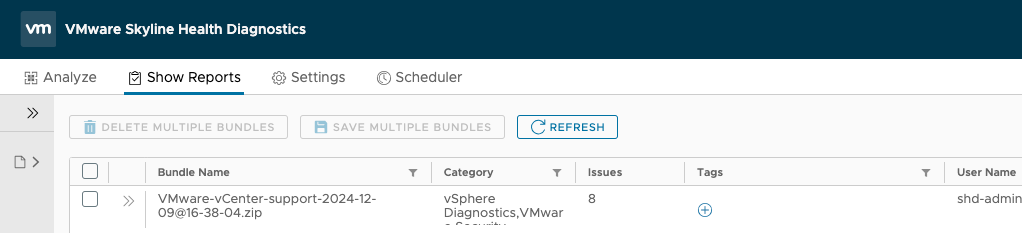
vCenter UI – SHD Plugin Dashboard
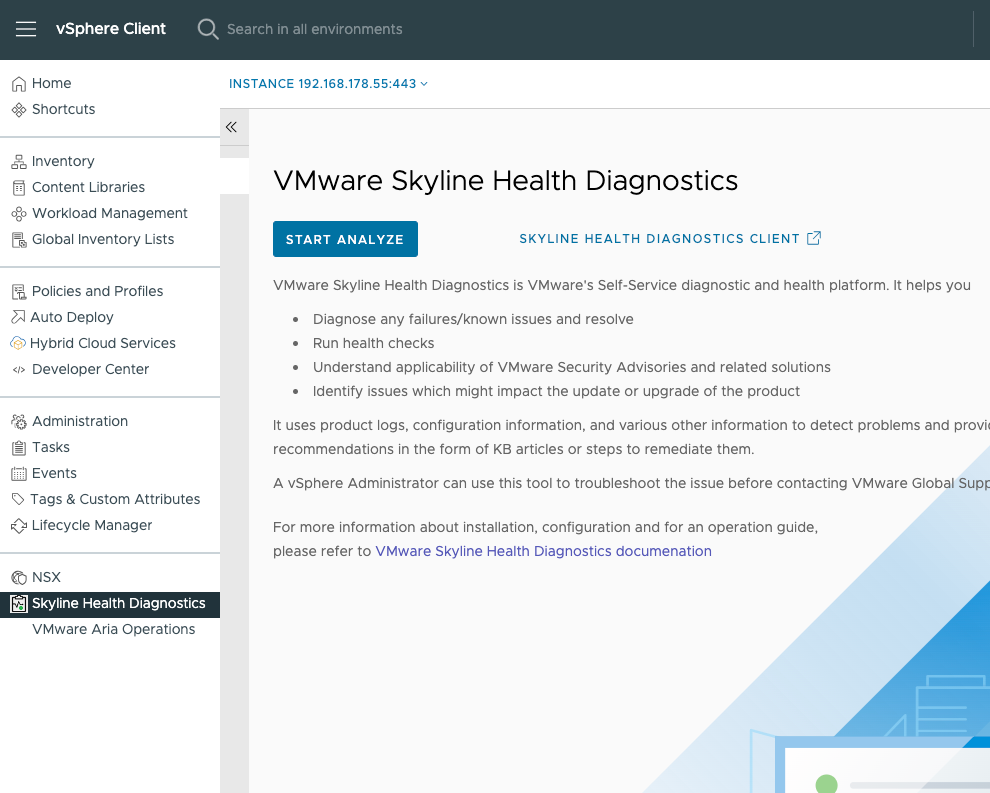
It is also possible to start a analysis from Skyline Health Diagnostic Dashboard in your vCenter. Please note that the reports from the dashboard are also displayed in the SHD. However, those that were started in the SHD are not displayed in the GUI from the vCenter Plugin.
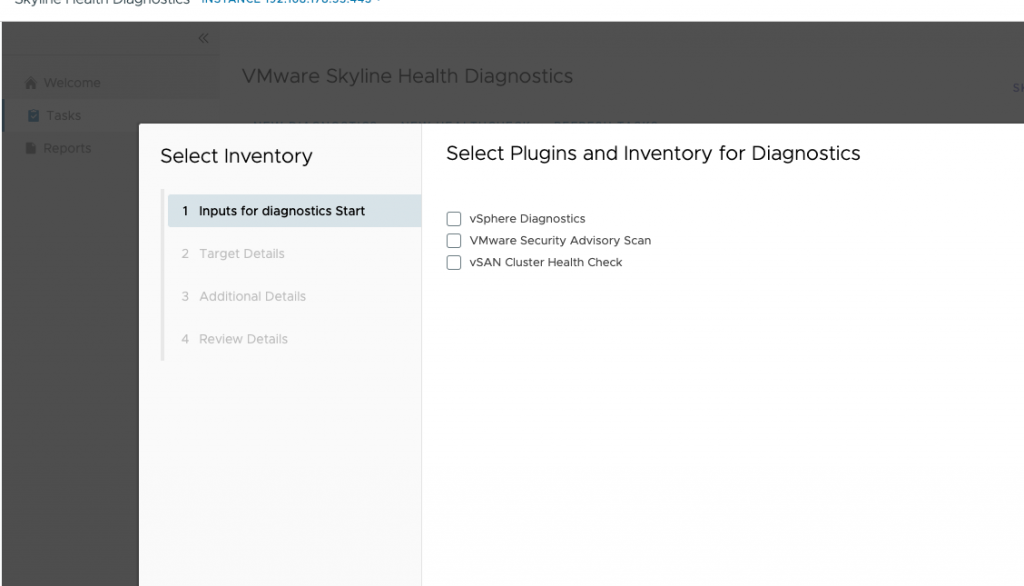
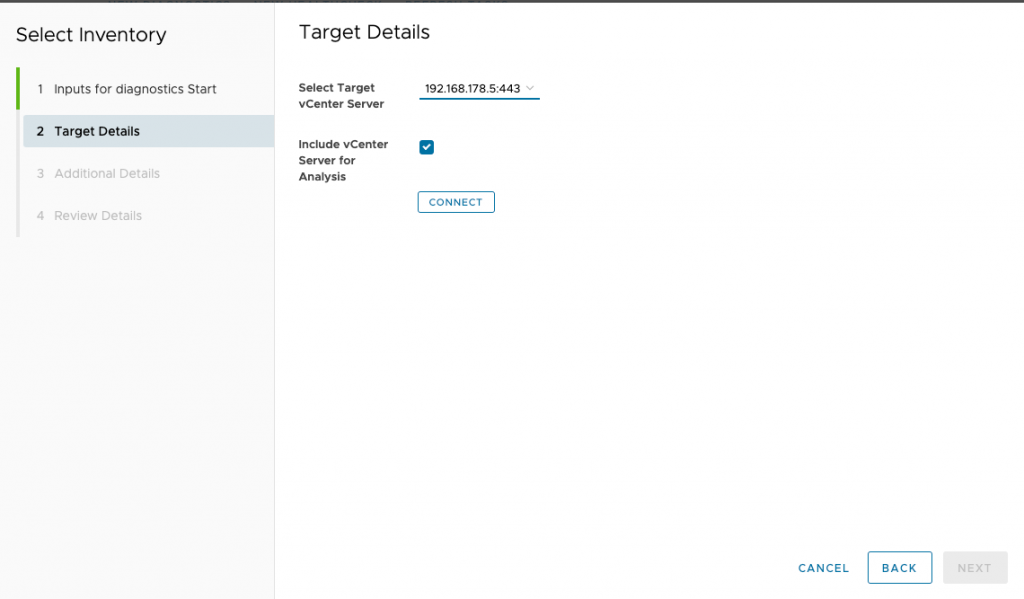
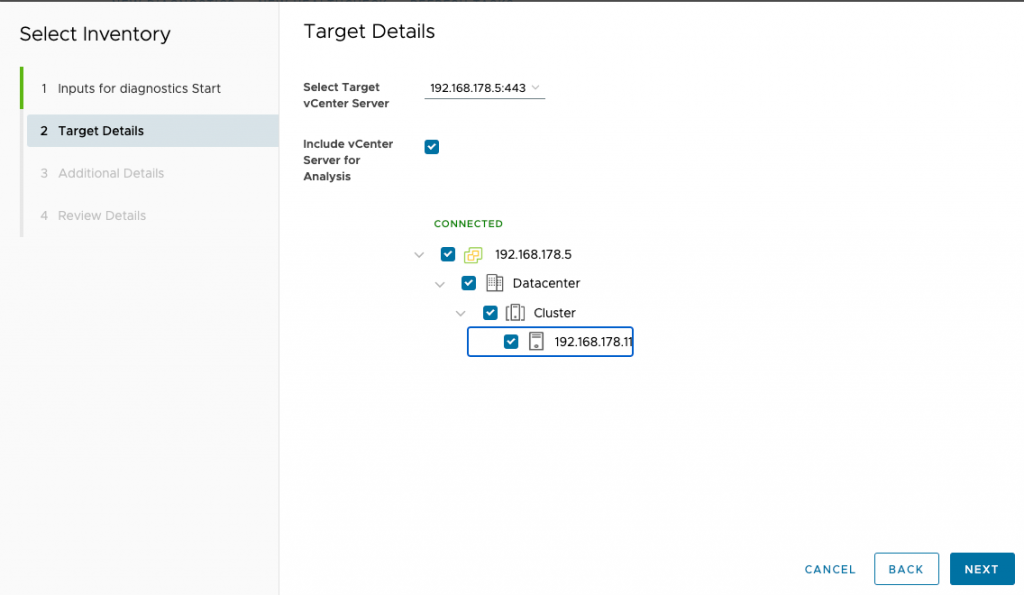
The procedure is the same. Click on “START ANALYSIS” and select your desired scan. Under “Target Details”, click on “CONNECT” and select the desired inventory. You will then find your scan in the “Tasks” tab and can display it with “SHOW REPORT”.
Technical
Scale Limits (techdocs)
Maximum Limits for the Analyze Operation
- max 64 Hosts selectable during analyze operations
- max 4 parallel analysis (the fifth must then be stared at again)
Maximum Limits for all Activities
- Last 5 upgrade activities will be displayed
- Last 5 download activities will be displayed
- Last 10 recent tasks are displayed in „Recent Task“
Ports and Protocols (techdocs)
If the internet connectivity is available, it can download the software updates.
It also communicates to VMware CEIP Service if CEIP is opeted in.
| Purpose | Destination URL | Protocol | Destination Port | Type of Interaction |
|---|---|---|---|---|
| Web user interface | https://<IP or FQDN of the VMware Skyline Health Diagnostics appliance>/Panalyze | HTTPS | 443 | Inbound |
| Connect to the VMware Skyline Health Diagnostics appliance console over the SSH | ssh_ remote_username@remote_host | SSH | 22 | Inbound |
| Download new patches, updates | https://shd-download.vmware.com | HTTPS | 443 | Outbound |
| Customer Experience Improvement Program (CEIP) | https://vcsa.vmware.com | HTTPS | 443 | Outbound |
Appendix
- Log Assist for Skyline Health Diagnostics (SHD) – Connection to Support Case Server Failed.
- VMware Skyline Health Diagnostics (techdocs.broadcom.com)
- Log Assist for Skyline Health Diagnostics (SHD) – Connection to Support Case Server Failed (KB 382858)
- VMware Skyline Health Diagnostics for vSphere – FAQ (KB345059)
- Scale Limits
- Ports and Protocols
- Supported Versions and Compatibilities
- Skyline Health Diagnostic 4.0.7 – Release Notes
- Skyline Health Diagnostic 4.0.7 – Download