Blog Posts about VMware | Home Assistant

Kategorie: Useful

Skyline Health Diagnostic Appliance

With the introduction of Log Assist in Version 4.0.7 last week and the killing of the Skyline Advisor, the Skyline Health Diagnostic (SHD) has come back into focus. In this article, I would like to show you how it works, what settings can be made and what functions the appliance offers. There will soon be another article showing how to interpret the log analysis.

The VMware Skyline Health Diagnostics is a self-service health and diagnostics platform that can help users detect and troubleshoot issues in their VMware environment. The platform uses log bundles, configuration & health information, and other data to identify potential problems, and suggest relevant VMware Knowledge Base articles or remediation steps which can be helpful in resolving complex issues […]

About VMware Skyline Health Diagnostics

Download Skyline Health Diagnostic Appliance (SHD)

To Download Skyline Health Diagnostic you need to login into support.broadcom.com Portal and select My Downloads > vCenter > vCenter [Version] > Drivers & Tools > Skyline Health Diagnostic (Release Notes). FYI: All Skyline Health Diagnostic documents are migrated to techdocs.broadcom.com.

Install SHD

In the deployment process of the appliance you need to setup a Password for the root and the shd-admin and if, as is usually the case, you do not want to use DHCP, then set the network settings. Since you will be prompted to change the root password directly after the installation process when you start the Appliance for the first time, you can set a simple password during installation process.

Installation is complited and you can start to setup the Appliance: https:/shd_ip_address_or_fqdn

Setup SHD

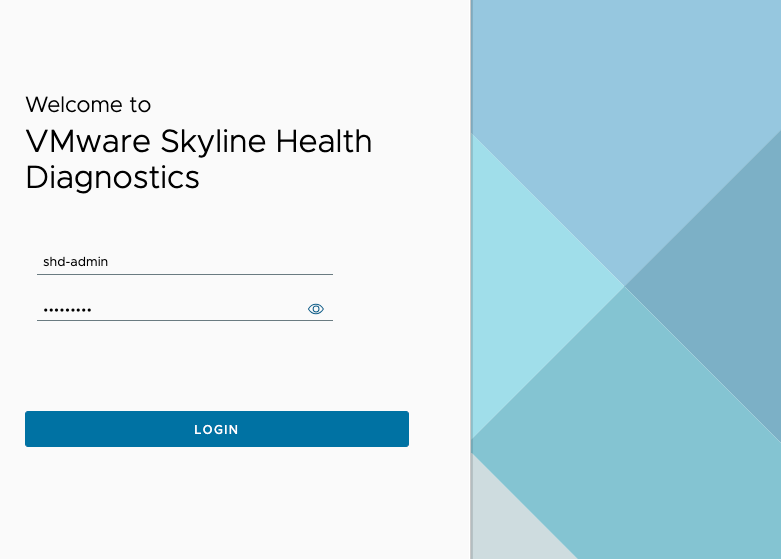
First of all you need as mention to setup a new Password. After that you can login Into Skyline Health Diagnostic and accept the „End user license agreement“ and accept „Customer Experience Improvement Program“.

CEIP Collection Sample Data
{
  "ceip": {
    "@id": "16c3aa593165",
    "@table": "vmwshd_usage_data",
    "@type": "vmwshd_usage_data",
    "bundle_size": 0,
    "extract_time": 0,
    "instance_id": "3bd40b0f-de6f-d06e-b257-a5fca139c8ad",
    "log_dir": [
      {
        "@id": "00008a093b677c21",
        "@table": "vmwshd_logdir_data",
        "@type": "vmwshd_logdir_data",
        "bundle_id": "16c3aa593165",
        "log_hash": "cf6cb866184147ca0395f38989f0704d55549d37d685f06ec18a5efdeeaff584",
        "num_fails": 0,
        "num_hits": 1,
        "num_rules": 156,
        "prd_build": "8294253",
        "prd_name": "VMware ESXi",
        "prd_release": "ESXi 6.5 Update 2 GA",
        "prd_type": "esxi",
        "prd_ver": "6.5.0",
        "rules_failed": "",
        "rules_matched": [
          {
            "@id": "d416514886d000b6",
            "@table": "vmwshd_result_data",
            "@type": "vmwshd_result_data",
            "log_id": "00008a093b677c21",
            "name": "KB67686",
            "space": "PSOD"
          }
        ],
        "status": "Completed Run Plugins",
        "time_finish": "2020-05-04T09:25:33",
        "time_run": 34,
        "time_start": "2020-05-04T09:24:59",
        "valid": 1
      }
    ],
    "nested_count": 0,
    "num_fails": 0,
    "num_hits": 1,
    "num_logs": 1,
    "num_rules": 156,
    "product_id": "8ff97494-3874-6212-a684-422b12504f12",
    "product_name": "VMware Skyline Health Diagnostics",
    "product_version": "4.0.7",
    "status": "Run Plugins - Completed",
    "task_exit": 200,
    "task_finish": "2020-05-04T09:25:34",
    "task_start": "2020-05-04T09:24:58",
    "task_status": "Completed",
    "task_time": 36,
    "task_type": "submitlog",
    "vc_uuid": "346000-000-000-000-0e82d720000"
  }
}

After click on „Settings“ you can start to setup the vCenter Connection via vSphere Plugin Registration, change default Configurations like Passwort History or Maximum Passwort Age and select if necassery a Proxy for the internet connection.

SHD – Log Assist

Important: Use of the Log Upload feature is limited to customers who receive technical support directly from Broadcom. If you receive support through one of Broadcom’s authorized partners, you will need to upload support files manually via the Broadcom Support portal. Please see the VMware to Broadcom Support FAQ for more information.

source: techdocs.broadcom.com

After click „+ LOG ASSIST“ you need to select between „VMware vSphere“ or „SDDC Manager“ and what you like to collect to your SR. After that you need to setup your Credentials for the support.broadcom.com Portal. Unfortunately there is an option at the Moment for me to show more Infos after that point, as I have neither a valid site ID nor a suitable case. I may be able to change this soon due to a customer situation. Then I will expand the point here. Until then, I would like to refer you to the two links:

SHD – New Analysis

Let’s start with a Analysis via Skyline Health Diagnostic. At first you need to select you Product. It is still changeable after click an „Next“. After select the Product you got an overview of which Checks you want to include. Please note that it is not always possible to select several checks together. For example, the vSphere checks “vCenter Upgrade Pre-Check Plugins” and “Proactive Findings” can only be selected individually. (i) Exclusive check cannot run with other checks.

Available Checks:

VMware vSphere
  • vSphere Diagnostics
  • VMware Security Advisory Scan
  • vSAN Cluster Health Check
  • vCenter Server Health Check 
  • vCenter Upgrade Pre-Check Plugins
  • Proactive Findings
VMware vSAN

vSAN Cluster Health Check

vCenter Server

vCenter Server/PSC Appliance Direct Connect Diagnostics 

VMware Security Advisory Scan

vCenter Server Health Check 

vCenter Server Upgrade Pre-Check 

VMware ESXi Server
  • ESXi Direct Connect Diagnostics
  • VMware Security Advisory Scan
VMware Cloud Foundation
  • SDDC Manager Diagnostics 
  • VMware Security Advisory Scan 
  • VMware Cloud Foundation Health Check 
  • VMware Cloud Foundation Upgrade Assessment 
  • Proactive Findings (SDDC Manager) 
VMware Horizon
  • Horizon Diagnostic
VMware Cloud Gateway
  • Cloud Gateway Diagnostics 

If all relevant Checks included and you click on next you need your credentials for e.g. your vCenter. At least select inventory you like to check and click on next. The log analysis process has now started.

FYI: There will be following an article focused on the interpretation of the analysis.

SHD – Log Bundle Analysis

If you are unable to connect SHD and your environment, e.g. a dark site, you can use a log bundle to scan the environment to which there is no access. In this case Select „+ LOG BUNDLE ANALYSIS“ and choose between „Local File“ and „Remote File“. The remote server must support one of these protocols for the file transfer:

  • HTTP/S
  • S/FTP
  • FTPS

vCenter UI – SHD Plugin Dashboard

It is also possible to start a analysis from Skyline Health Diagnostic Dashboard in your vCenter. Please note that the reports from the dashboard are also displayed in the SHD. However, those that were started in the SHD are not displayed in the GUI from the vCenter Plugin.

The procedure is the same. Click on “START ANALYSIS” and select your desired scan. Under “Target Details”, click on “CONNECT” and select the desired inventory. You will then find your scan in the “Tasks” tab and can display it with “SHOW REPORT”.

Technical

Scale Limits (techdocs)

Maximum Limits for the Analyze Operation

  • max 64 Hosts selectable during analyze operations
  • max 4 parallel analysis (the fifth must then be stared at again)

Maximum Limits for all Activities

  • Last 5 upgrade activities will be displayed
  • Last 5 download activities will be displayed
  • Last 10 recent tasks are displayed in „Recent Task“

Ports and Protocols (techdocs)

If the internet connectivity is available, it can download the software updates.
It also communicates to VMware CEIP Service if CEIP is opeted in.

PurposeDestination URLProtocolDestination PortType of Interaction
Web user interfacehttps://<IP or FQDN of the VMware Skyline Health Diagnostics appliance>/PanalyzeHTTPS443Inbound
Connect to the VMware Skyline Health Diagnostics appliance console over the SSHssh_ remote_username@remote_hostSSH22Inbound
Download new patches, updateshttps://shd-download.vmware.comHTTPS443Outbound
Customer Experience Improvement Program (CEIP)https://vcsa.vmware.comHTTPS443Outbound

Appendix

VMware Appliances – Photon OS Overview

Project Photon OS
Photon OS is a Linux based, open source, security-hardened, enterprise grade appliance operating system that is purpose built for Cloud and Edge applications.

https://vmware.github.io/photon/

It can be a real challenge for customers to keep track of the different versions of Photon OS that are used in the products offered. Time and time again, I find that customers ask during my TAM calls: “Which Photon version is used in this product?” Unfortunately, there is no comprehensive overview that lists all products with the corresponding Photon OS versions.

For this very reason, I believe it’s high time to change that! I want to create a central resource where information about the different Photon versions is presented clearly and concisely.

If you notice that a particular product is missing from this overview, please don’t hesitate to contact me! Your feedback is invaluable and helps me to expand this database. If you have information about older versions, I would be very grateful if you could leave a comment with the product name and version number. If we work together, we can build a more comprehensive database that will benefit not only you, but other users as well.

So let’s work together to promote transparency and knowledge sharing in our community!

[cat /etc/photon-release]

How do I get the version number?

The version number is documented in /etc/photon-release. If the appliance is already installed, it is sufficient to connect to the appliance via SSH and query the version with a short “cat /etc/photon-release”. If you don’t have the version yet, hopefully my overview will help you or you could use a VMware Hands-on Lab that uses the corresponding version.

cat /etc/photon-release
PhotonOS
VMware Aria Operations for Logs – Get Photon OS Version

What can I do if the Photon OS Version is EOL?

Customers do not need to worry about PhotoOS support, they just need to worry about vCenter or vSphere support. It’s our (VMware’s) responsibility to take care of the Photon OS.

https://knowledge.broadcom.com/external/article/301489/faq-end-of-support-for-photon-os-on-vcen.html

When we are talking about VMware Appliances, there’s generally nothing you need to do as long as the Appliance is still supported. VMware takes care of the Photon OS for you, ensuring that everything runs smoothly and securely. It is important to note that updating the Photon OS on your own is not supported; any updates are managed by VMware to maintain system integrity.
However, if you are using an unsupported Appliance, it’s crucial that you take the necessary steps to update it. This responsibility falls on you, as maintaining an unsupported Appliance may expose you to security vulnerabilities and performance issues.
On the other hand, if we are discussing your own machine that runs Photon OS, you will need to follow a specific guide to update it effectively. This guide will provide you with the necessary instructions and steps to ensure your system remains up-to-date and functions optimally:


vSphere Security Configuration Guide

What is that – And why I „need“ that?

Security Hardening Guides provide prescriptive guidance for customers on how to deploy and operate VMware products in a secure manner. Guides for vSphere are provided in an easy to consume spreadsheet format, with rich metadata to allow for guideline classification and risk assessment. They also include script examples for enabling security automation. Comparison documents are provided that list changes in guidance in successive versions of the guide.

https://www.vmware.com/solutions/security/hardening-guides

A few days ago, my colleague Markus and I started discussing the recommendations from the vSphere Security Configuration Guide (SCG) with one of our customers. Personally, I would recommend that every customer or VMware administrator take a look at the SCG. Not all of this points needs to be implemented or adapted, as every environment is different – even if they are all the same – there is always a point why a recommendation cannot be implemented. But you should know the aspects from the guide and at least know what the best practice would be and, above all, why.

How it works?

First of all – take a moment to look into the Security Configuration and Hardening Guide Guidance. In addition to how to use, there are also important tips on how to use it correctly. E.g. that „All guidance in the Security Configuration Guide is meant to be applied to virtual machines in a powered off state, or hosts
which have been placed in maintenance mode and are able to restart.“

After you mean, that you now know what you do 🙂 you can start with the excel file and take a first look into the recommendations. They are clustered into different Topics on the spreadsheet pages like System Design or Hardware Configuration. For each Point you got a Discussion Field – it describes, why you need to be think about that and a Description Field about the „potential Impact if the default value changed“. In case that it is available for this Recommendation, there is a PowerCLI command to got a batch export for it. And last bot not least, you got a Priority between P0 and P2 in the second column. P0 means that it is important to set for security as there isn’t a default or not a clear compensating control. For P1 there is already a default exist but needs to be audit.

There are some Differences starting with Version 8. Now you are also find ps1 files. On the one hand there are audit files to compare the outcome of your environment with the Guide and on the other hand, there are remediate scripts to adjust your environment. Also there are fewer table pages in the excel file. Most of the old Recommendations for vCenter, VM, etc. are now placed in the Control Table.

Where can I find the vSphere Security Configuration Guide?

As there are always new versions of the SCG with the version updates, I will not provide a direct link at this point to a special Version. However, in this overview you will find the link to the newest vSphere SCG as well as the other hardening guides. Another option is on Github, here you find all sources around the vSphere Security Configuration Guide: https://bit.ly/vcf-scg (permanent Link)

Also good2know

For all of you using Aria Operations there are also since 8.16 different Compliance Dashboards. Dashboards for CIS, DISA, etc. are very helpful to got a quick overview of your environment challenge by your required Compliance Policy. And if necessary, there is also an option to create your own Compliance Dashboard with your company requirements.

Microsites

This post is based on an overview I copied from Robert Guske. He was my mentor when I started at VMware over 6 years ago. Since he’s no longer with the company, we decided to move the entire document to my blog. The links have been updated to point to the new Broadcom pages.

The overview is a collection of useful links and resources designed to help you navigate the Broadcom ecosystem.

Updates and Contributions
I’ll keep this page regularly updated with the latest links and information. If you know of any additional websites or resources that should be included, feel free to share them in the comments below. I’m happy to keep improving this page with your input.

What is a Microsite?

Microsites are typically used in web design to add a specialized group of information either editorial or commercial. Such sites may be linked in to a main site or not or taken completely off a site’s server when the site is used for a temporary purpose. The main distinction of a microsite versus its parent site is its purpose and specific cohesiveness as compared to the microsite’s broader overall parent website.

Source: https://en.wikipedia.org/wiki/Microsite

CategorySiteURLmore Infos
GeneralCareershttps://www.broadcom.com/company/careers
GeneralSupport Portalhttps://support.broadcom.comDownload Broadcom products and software

VMware vSphere downloads, VMware Converter, OEM custom images, patches and addons in the Broadcom Support Portal
GeneralVMware Marketplacehttps://marketplace.cloud.vmware.com
TechnicalTech Doc Portalhttps://techdocs.broadcom.com/
TechnicalCompatibility Guide (HCL)https://compatibilityguide.broadcom.com/
TechnicalVMware Documentationhttps://docs.vmware.com
TechnicalVMware Knowledge Basehttps://support.broadcom.com
TechnicalVMware Technical Papershttps://www.vmware.com/techpapers
TechnicalVMware Developershttps://developer.broadcom.com
TechnicalVMware Product Interoperability Matrixhttps://interopmatrix.broadcom.com
TechnicalVMware Product Lifecycle Matrixhttps://support.broadcom.comProduct lifecycle and end of life information for Broadcom, CA, Symantec, and VMware products
TechnicalVMware Configuration Maximumshttps://configmax.broadcom.com/home
TechnicalPorts and Protocolshttps://ports.broadcom.com
TechnicalVMware {code}https://community.broadcom.com/vmware-code/home
TechnicalVMware Cloud Servicesvmc.vmware.com
TechnicalVMware Github Open Sourcehttps://github.com/vmware
EducationVMware Blogshttps://blogs.vmware.com
EducationVMware Educationhttps://www.broadcom.com/support/education/vmwareNew VMware Learning Platform
EducationVMware Hands-on Labshttps://www.vmware.com/resources/hands-on-labs
EducationVMware Customer Connect Learninghttps://www.broadcom.com/support/education/vmware
EducationVMware Tanzu Developer Center Hand-On Workshopshttps://tanzu.academy/
EducationVMware Podcasts on Soundcloudsoundcloud.com/vmware
EducationDer deutschsprachige VMware Podcasthttps://der-deutschsprachige-vmware-podcast-v2.zencast.website/
EducationVMware TAM Labhttps://www.youtube.com/c/VMwareTAMLab
EducationVMworld On-Demand Video Libraryhttps://www.vmware.com/explore/video-library
AriavRealize Operations Manager Sizinghttps://vropssizer.vmware.com/sizing-wizard/choose-installationVMware Aria Operations Sizing Guidelines
AriavRealize Log Insight Sizing Calculatorhttps://vrlisizer.vmware.com/overview
vSANVMware Core Tech Zone (vSAN)https://www.vmware.com/resources/
vSANvSAN Ready Node Sizerhttps://core.vmware.com/resource/vmware-vsan-design-guideUse the VMware vSAN Design and sizing Guide to ensure your cluster is sized properly for your production needs
StatusVMware Cloud Services Status Pagehttps://status.broadcom.com/services/vmware-cloud-services/
StatusVMware Cloud Services – GovCloud Status Pagehttps://status.broadcom.com/services/vmware-cloud-services-govcloud/
EUC (Status) VMware WorkspaceONE Status Pagestatus.workspaceone.com
EUCVMware Digital Workspace Tech Zonehttps://techzone.omnissa.com/
#VMware MicroSite Overview

Change Log:

2025-01-08: add Compatibility Guide (HCL) https://compatibilityguide.broadcom.com/

2024-12-10: change VMware Product Interoperability Matrix
from https://sim.esp.spespg1.vmw.saas.broadcom.com/Interoperability to https://interopmatrix.broadcom.com.

2024-12-10: add Tech Doc Portal https://techdocs.broadcom.com/

© 2026 vmdaube

Theme von Anders NorénHoch ↑